Exploration UI Settings
The Exploration UI Settings editor configures how the Exploration UI behaves for everyone using this Quine instance. Open it from the gear at the right end of the Exploration UI toolbar, then choose "Exploration UI Settings".
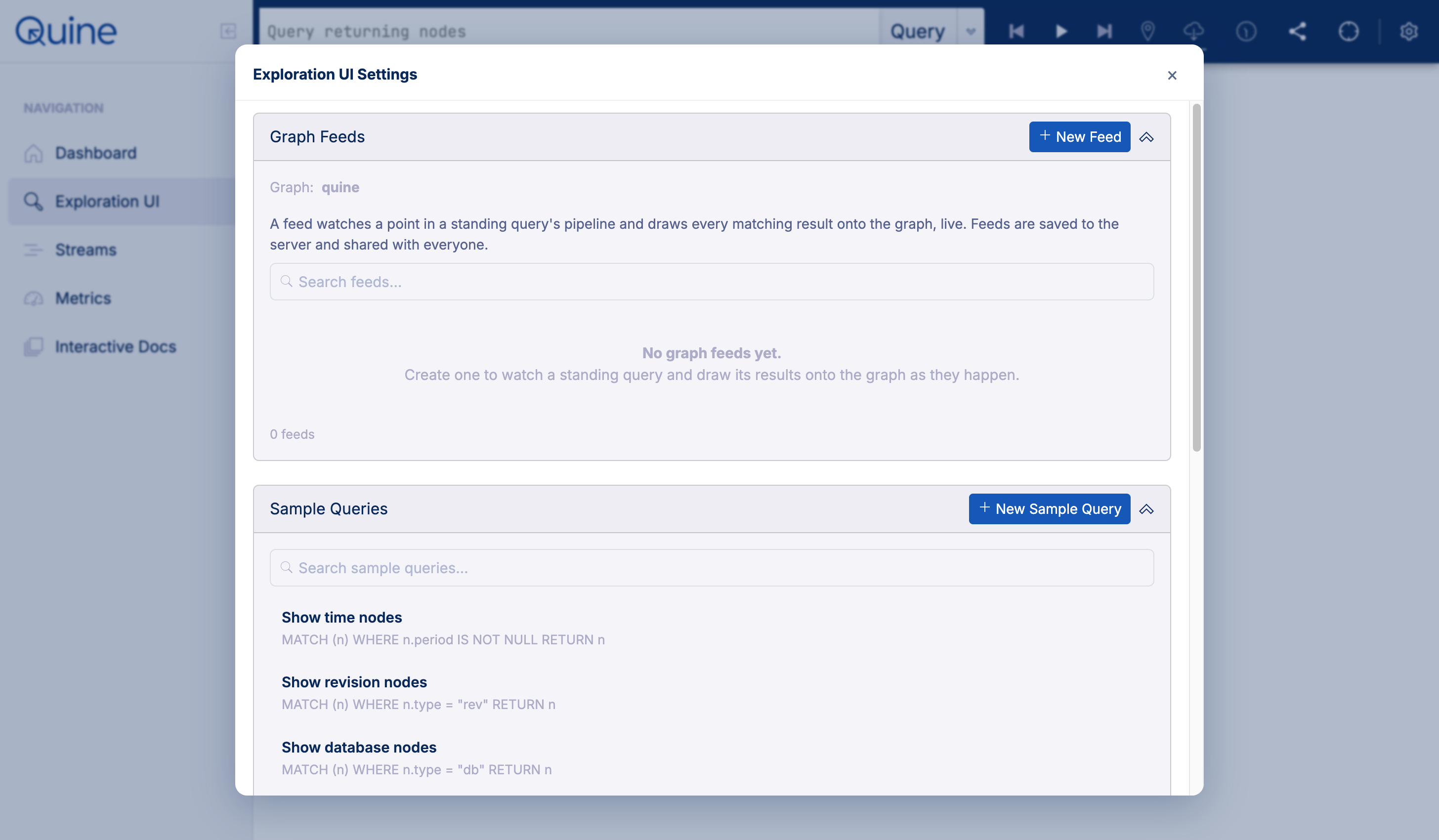
The editor has four sections: Graph Feeds, Sample Queries, Quick Queries, and Node Appearances. Each section lists its existing entries with a search box, and has a button to create a new entry. All of these settings are saved to the server and shared with everyone, they are not per-user preferences.
Graph Feeds
A graph feed watches a point in a standing query's output pipeline and draws every matching result onto the canvas, live. Feeds turn the Exploration UI from a snapshot into a continuously updating view of what a standing query is matching right now.
Click "New Feed" to create one:
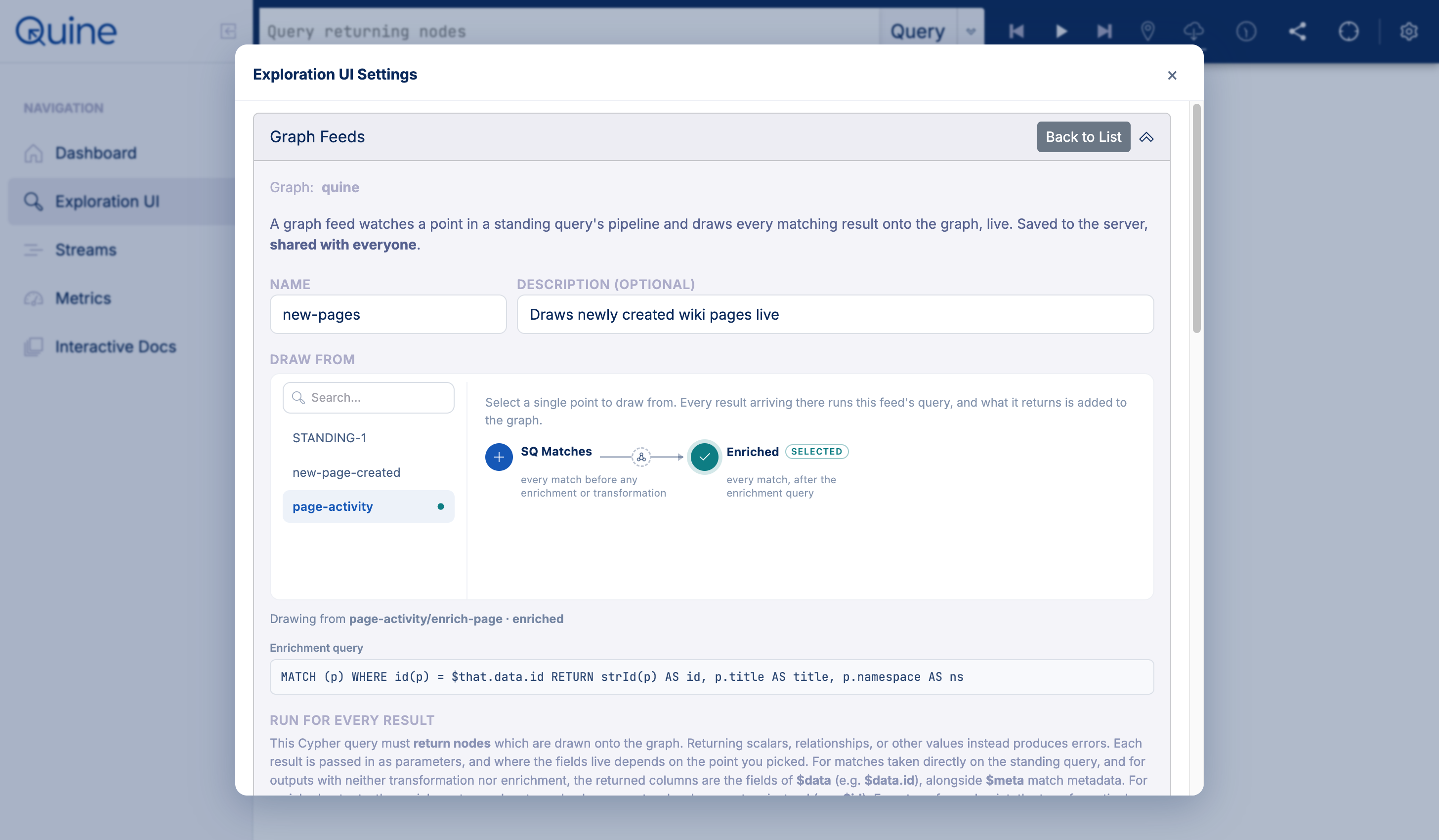
- Name and description: how the feed appears in the feed list and on the canvas.
- Draw from: pick a standing query, then pick a single point in its output workflow to watch. The available tap points are the raw matches (every match before any transformation or enrichment) and, when the workflow defines them, the results after the transformation step and after the enrichment step.
- Run for every result: a Cypher query executed for each result arriving at the chosen point. It must return nodes, which are drawn onto the canvas. Each result is passed in as query parameters. For raw matches the returned columns are the fields of
$data, alongside$metamatch metadata. For transformed or enriched points, the columns of the transformed or enriched result are passed directly as parameters, for example$id.
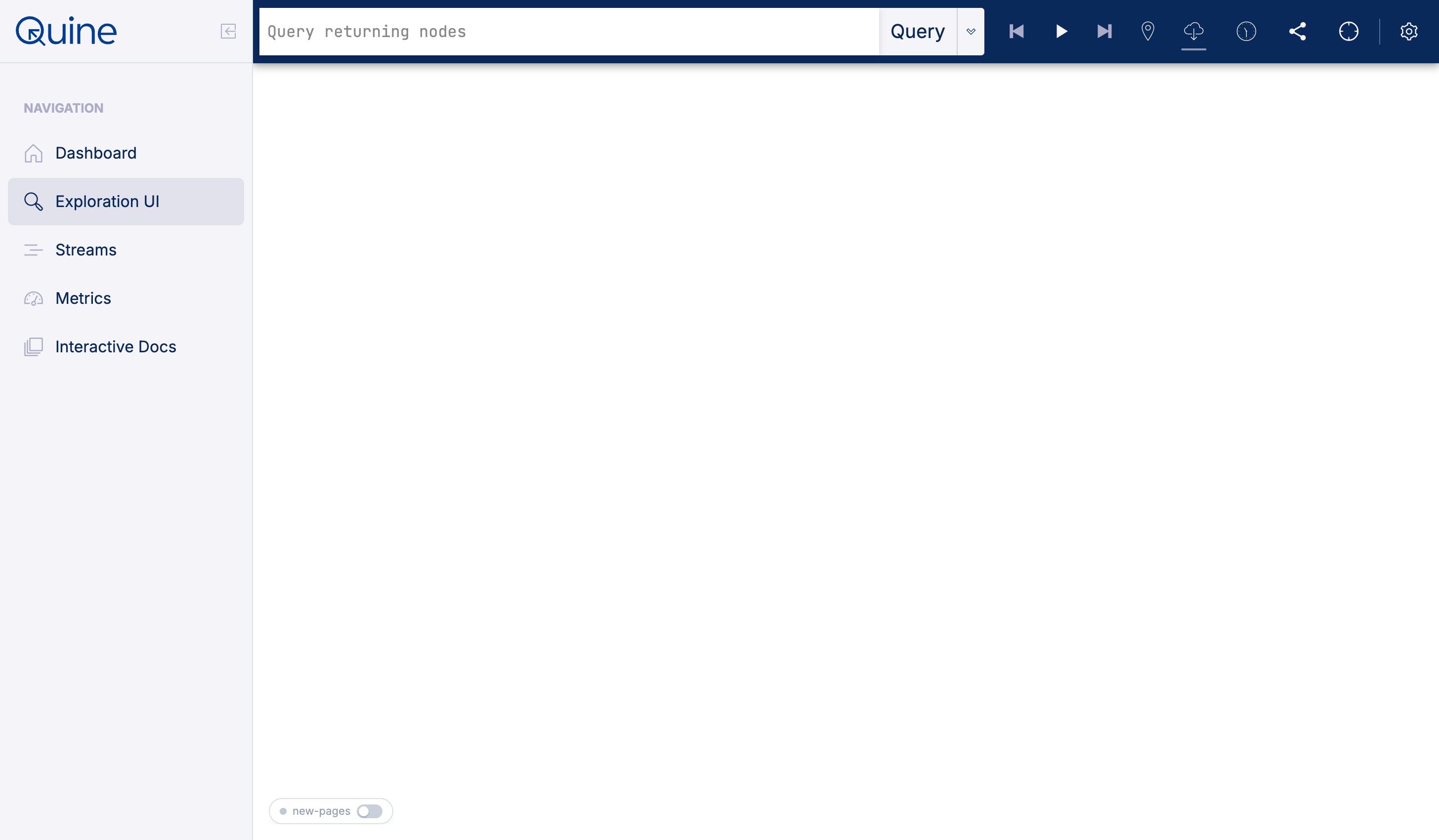
Saved feeds appear as pills at the bottom of the Exploration UI canvas. Each pill has a toggle to start or stop drawing that feed's results:
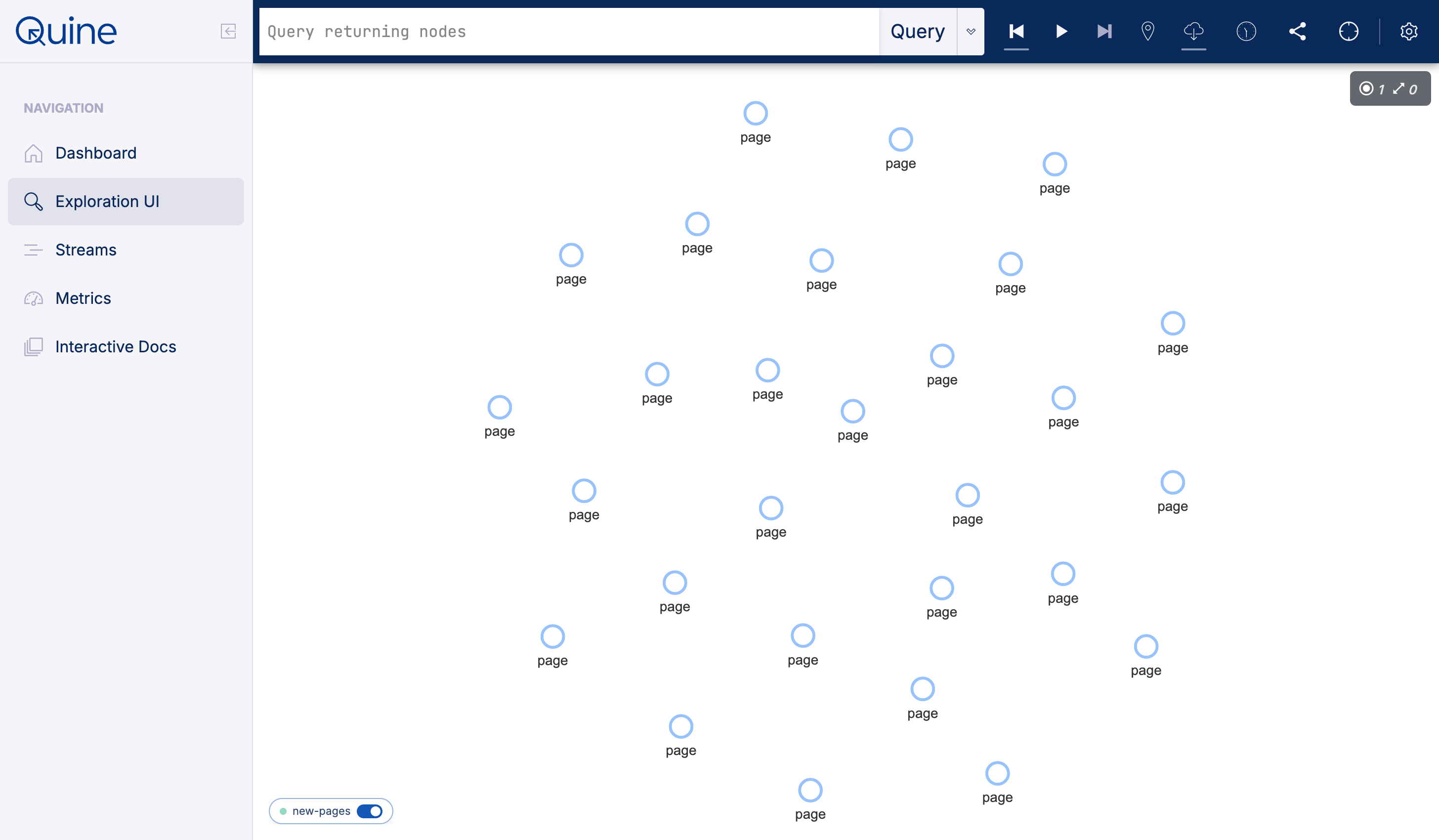
While a feed is live, matching nodes stream onto the canvas as they arrive:
Sample Queries
Sample queries populate the drop-down under the Exploration UI query bar, giving users a set of starting points for exploring the graph. Each sample query has a display name and the Cypher text that is loaded into the query bar when chosen.
Sample queries can also be created directly from the query bar with "Bookmark as sample query" in the query menu.
Quick Queries
Quick queries are the contextual queries offered when right-clicking a node on the canvas. Each quick query defines the node kinds it applies to, the query to run starting from the clicked node, whether it returns nodes or text, and optionally a synthetic edge label for rendering results. See Interacting With Data for how quick queries behave on the canvas.
Node Appearances
Node appearances control how nodes render on the canvas: the icon, color, size, and label shown for nodes matching a predicate. Use them to make different kinds of nodes visually distinct, for example coloring :page nodes differently from :user nodes.
Configuring via the REST API
Everything in this editor is also configurable through the REST API, under the "UI Styling" heading in the REST API documentation. API configuration is useful for setting up the Exploration UI as part of automated deployment, or from a recipe.