Streams
The Streams page is where you manage ingest streams and standing queries for your Quine data pipeline. It is accessible from the left sidebar.
API v2 Required
The Streams page is available only when the v2 API is enabled. It does not appear in the sidebar when running in API v1 mode.
Overview
The Streams page is organized into four panels:
- Ingest Streams: Create, monitor, pause, resume, and delete ingest streams that feed data into the streaming graph.
- Standing Queries: Create, monitor, and delete standing queries that watch the graph for patterns and route results to outputs.
- Background Queries: Run Cypher queries out-of-band, watch their results arrive, and cancel them.
- Scheduled Jobs: Create and delete jobs that dispatch a background query on a recurring schedule.
Each panel has a list view and a creation form. All panels auto-refresh to keep stats current.
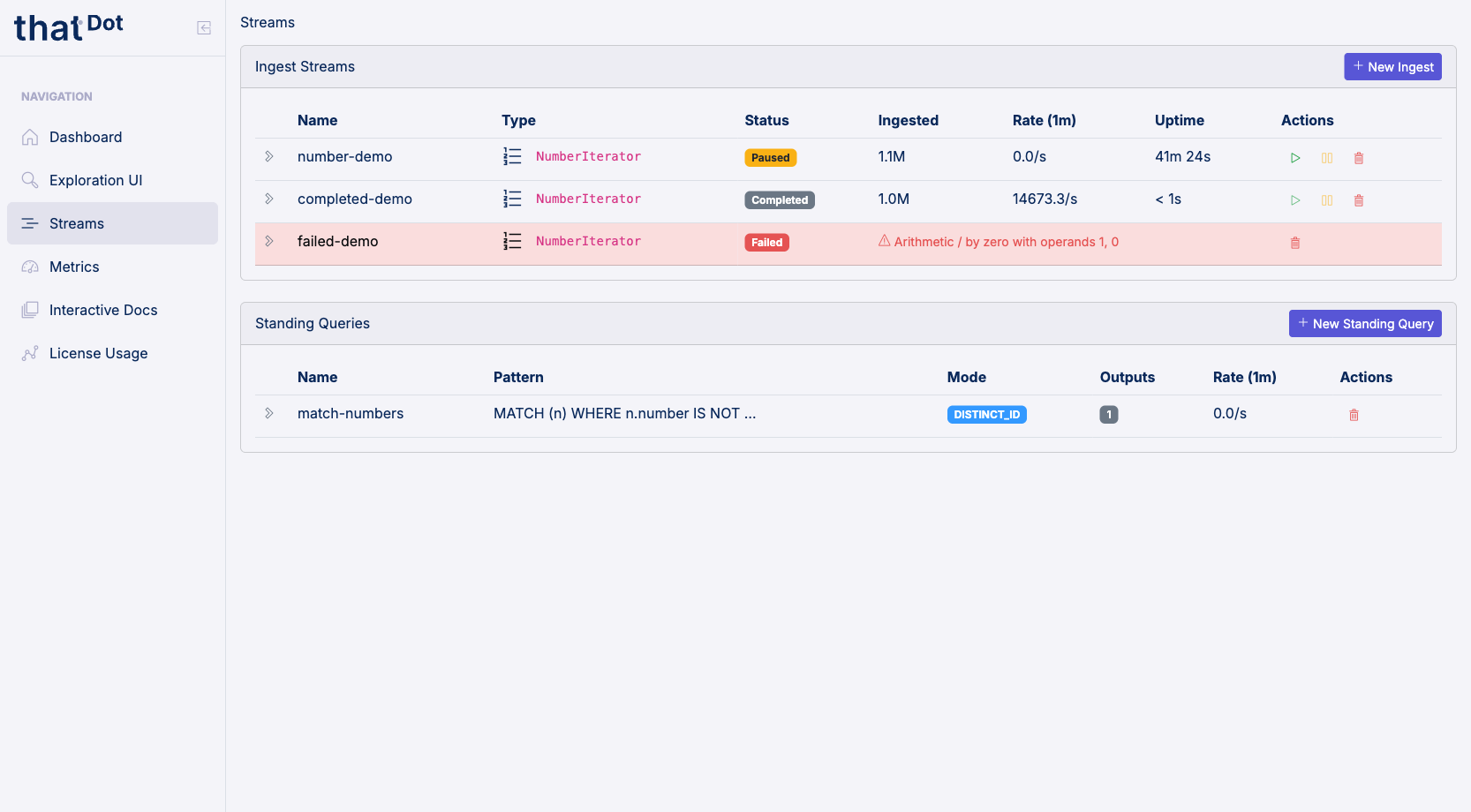
Ingest Streams Panel
The Ingest Streams panel displays all configured ingest streams in a table with the following columns:
| Column | Description |
|---|---|
| Name | The unique name assigned to the ingest stream |
| Type | The source type (e.g., Kafka, Kinesis, FileIngest, StdInput) |
| Status | Current state: Running, Paused, Restored, Completed, or Failed |
| Ingested | Total number of records processed |
| Rate (1m) | One-minute rolling ingest rate (records per second) |
| Uptime | How long the stream has been active |
| Actions | Controls to pause, resume, or delete the stream |
Ingest Stream Status
Each ingest stream displays a color-coded status badge:
- Running (green): The stream is actively consuming records.
- Paused / Restored (yellow): The stream is temporarily halted and can be resumed.
- Completed (gray): The source was fully consumed (e.g., a finite file or a number iterator with a limit).
- Terminated (gray): The stream was stopped by a user or API call.
- Failed (red): The stream encountered an error. The entire row highlights in red with the error message displayed. Only the delete action is available.
Managing Ingest Streams
- Pause: Temporarily halt an ingest stream. The stream can be resumed later.
- Resume: Continue a paused or restored stream.
- Delete: Remove the stream entirely.
Creating an Ingest Stream
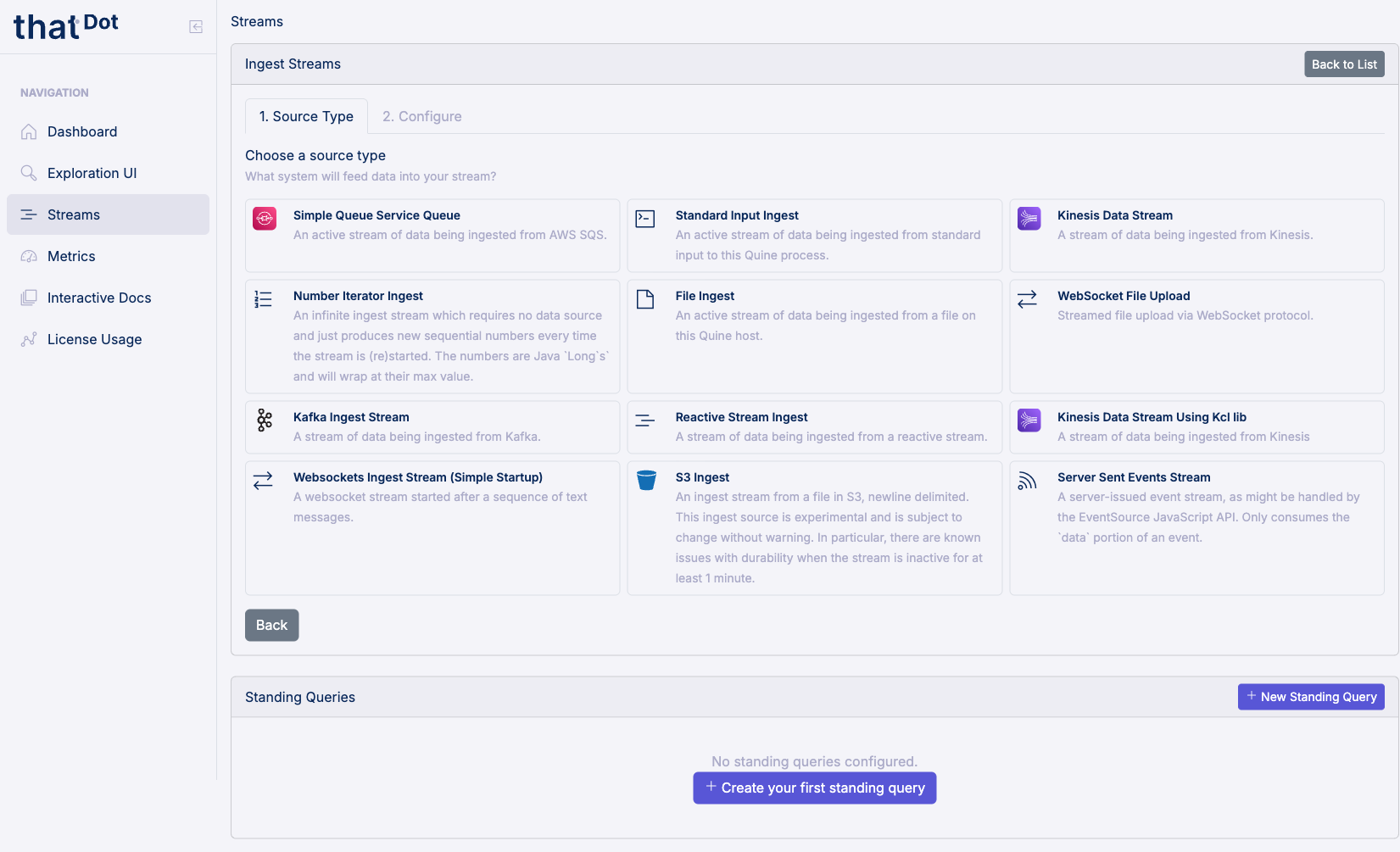
Click + New Ingest to switch to the creation form. The form uses a two-step workflow:
Step 1: Source Type. Select the type of system that will feed data into your stream. Available source types include Kafka, Kinesis, SQS, files, standard input, S3, server-sent events, WebSocket, and more.
Step 2: Configure. Fill in the source-specific settings (such as topic names, bootstrap servers, or file paths), the ingest query, and any optional settings like record decoders or error handling. The form fields adapt to the source type selected in Step 1.
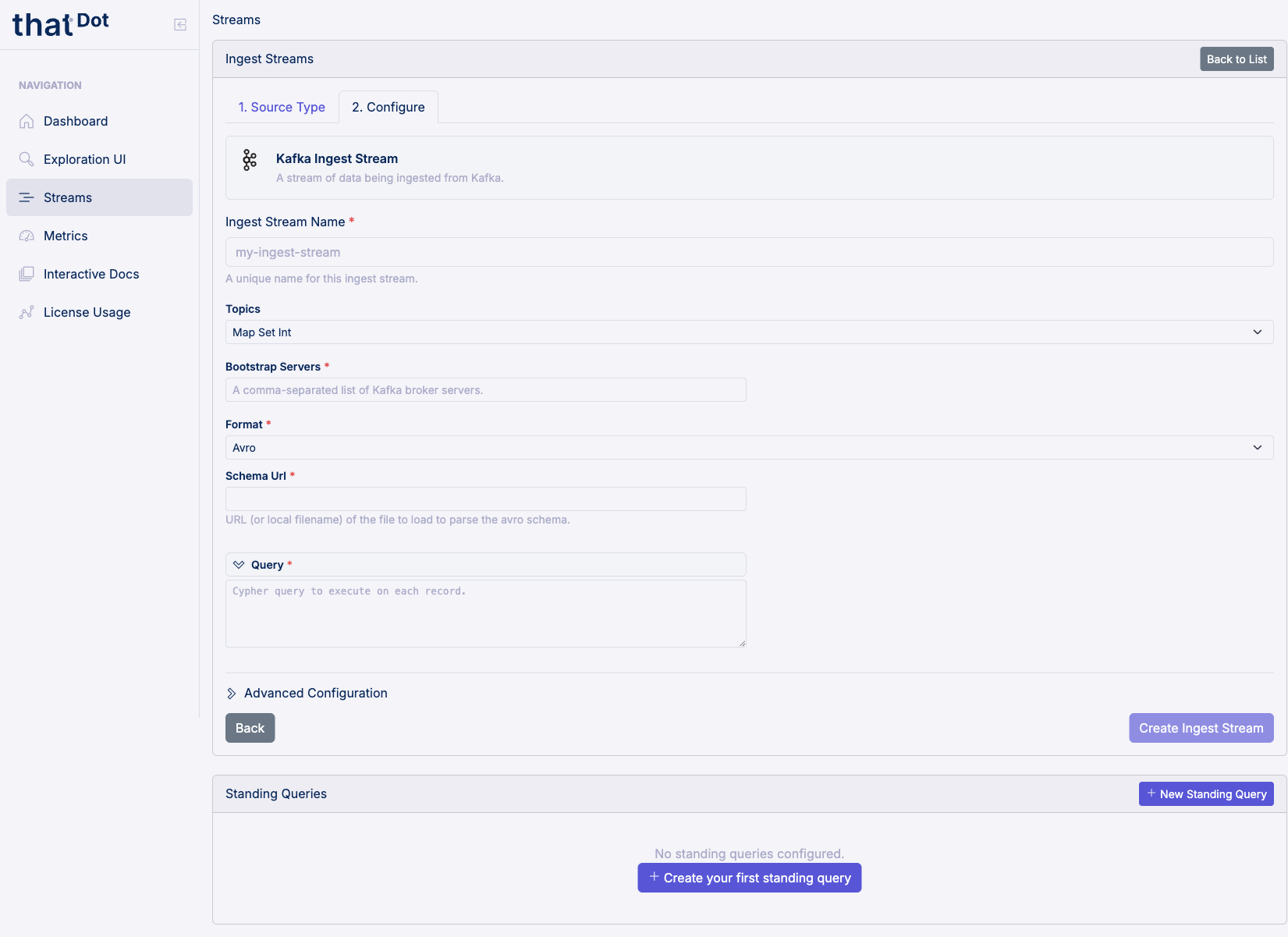
Provide a unique Name for the stream and click Create Ingest Stream to submit.
Click Back at any step to return to the previous step or cancel the creation.
See Ingest Streams for configuration options, source types, and error handling.
Standing Queries Panel
The Standing Queries panel displays all configured standing queries in a table with the following columns:
| Column | Description |
|---|---|
| Name | The unique name assigned to the standing query |
| Pattern | The Cypher pattern query (truncated in the table, full text on hover) |
| Mode | The matching mode for the query |
| Outputs | Number of output destinations configured |
| Rate (1m) | One-minute rolling match rate |
| Actions | Control to delete the standing query |
Creating a Standing Query
Click + New Standing Query to switch to the creation form. The form collects:
- Name: A unique identifier for the standing query.
- Pattern: The Cypher
MATCH/RETURNquery that defines what graph structure to watch for. - Mode: The matching mode (e.g.,
Distinct ID). - Outputs: One or more output destinations with optional result enrichment queries.
- Additional options: Such as
includeCancellationsandinputBufferSize.
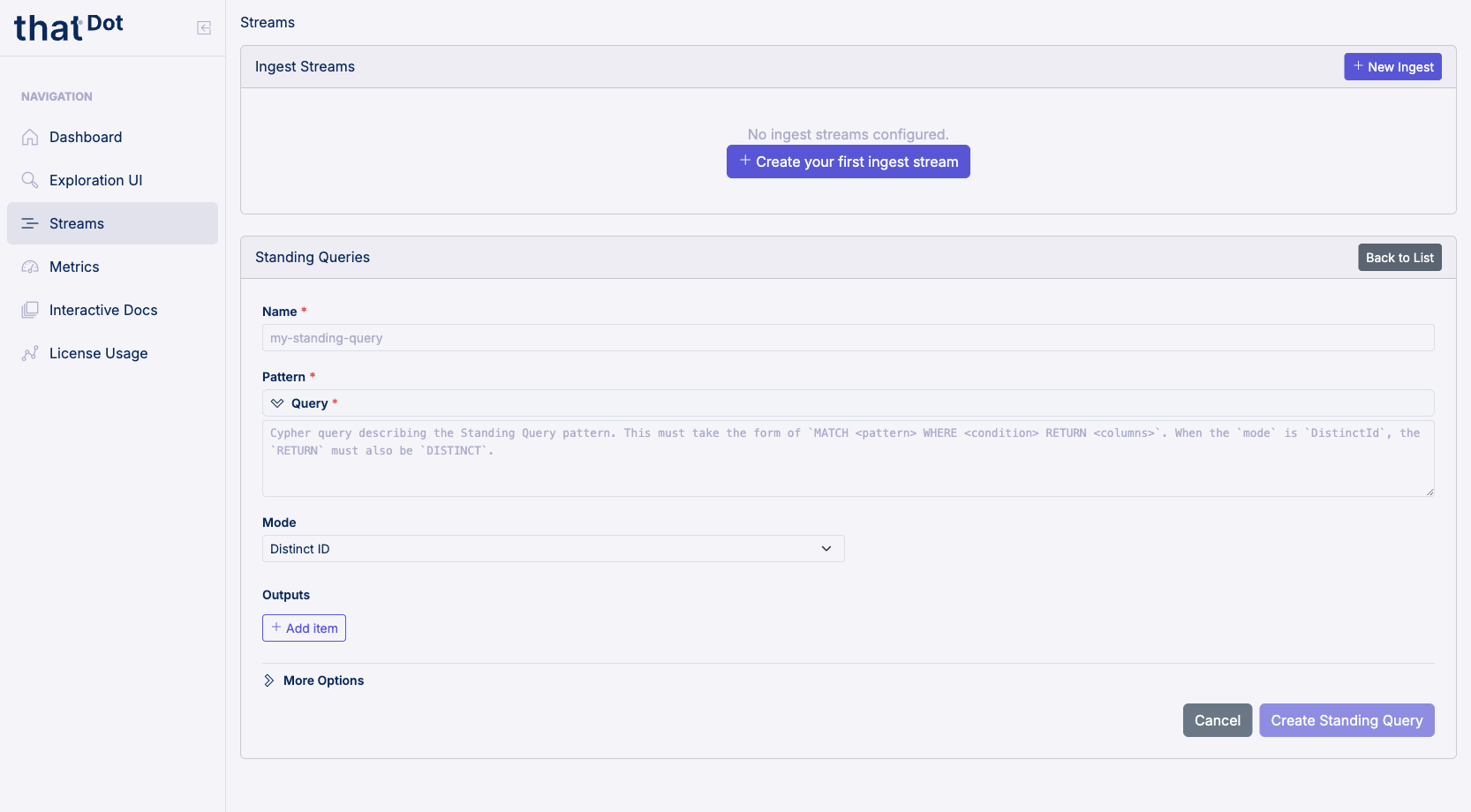
Click Create Standing Query to submit.
See Standing Queries for standing query patterns, outputs, and query enrichment.
Background Queries Panel
The Background Queries panel lists one-off background queries cypher queries running out-of-band against the selected graph. In-flight runs are listed first, then the most recent.
Runs dispatched by a scheduled job are not listed here; they appear under their job in the Scheduled Jobs panel instead, so a frequent schedule cannot bury the handful of runs a person actually started.
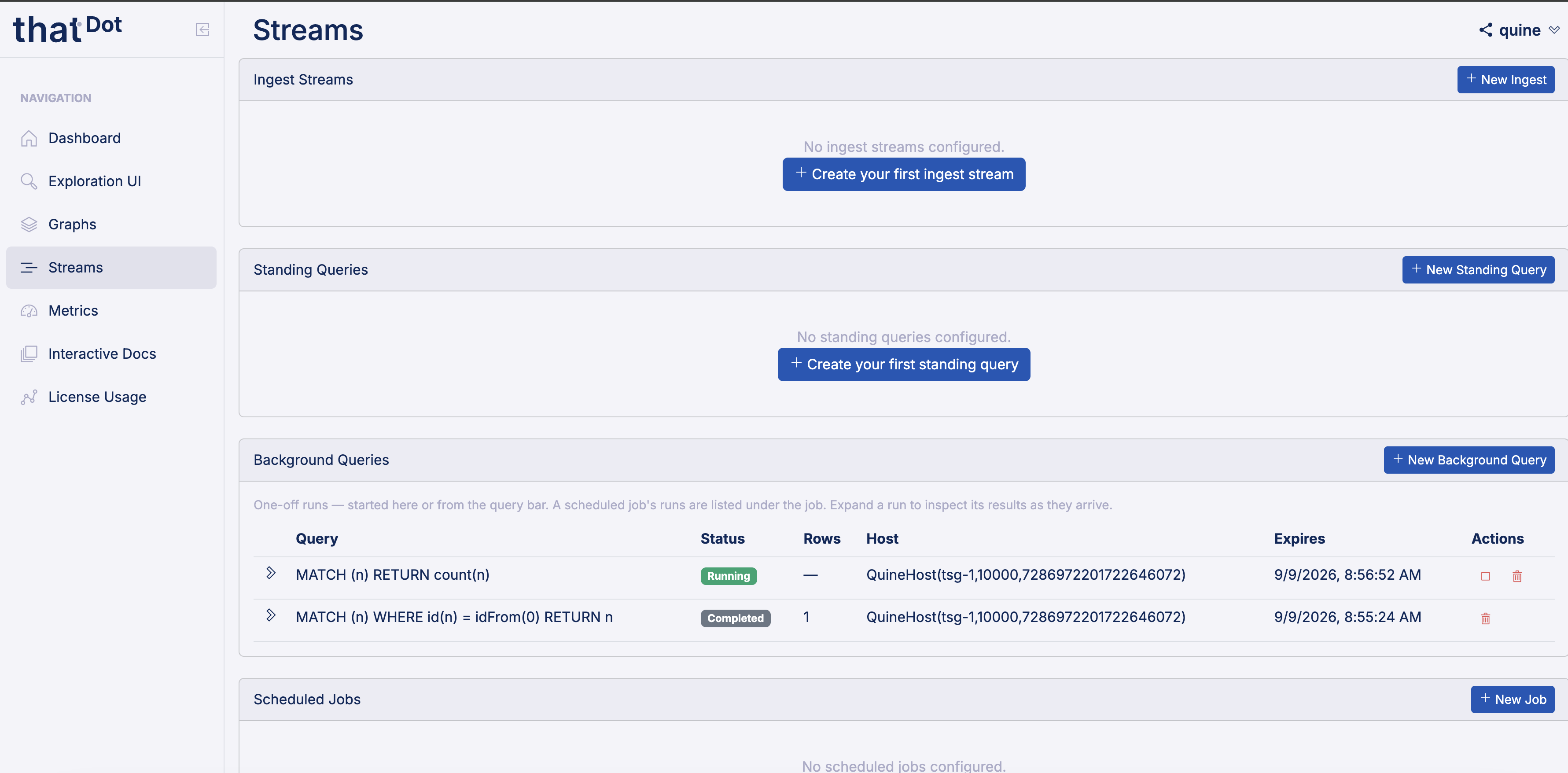
The table has the following columns:
| Column | Description |
|---|---|
| Query | The run's name if it has one, otherwise the Cypher text |
| Status | Running, Completed, Failed, Cancelled, or Interrupted |
| Rows | Total rows streamed, once the run completes |
| Host | The host executing the run |
| Expires | When the run's status record will be swept |
| Actions | Controls to cancel a running query, or delete its record |
Running a Background Query
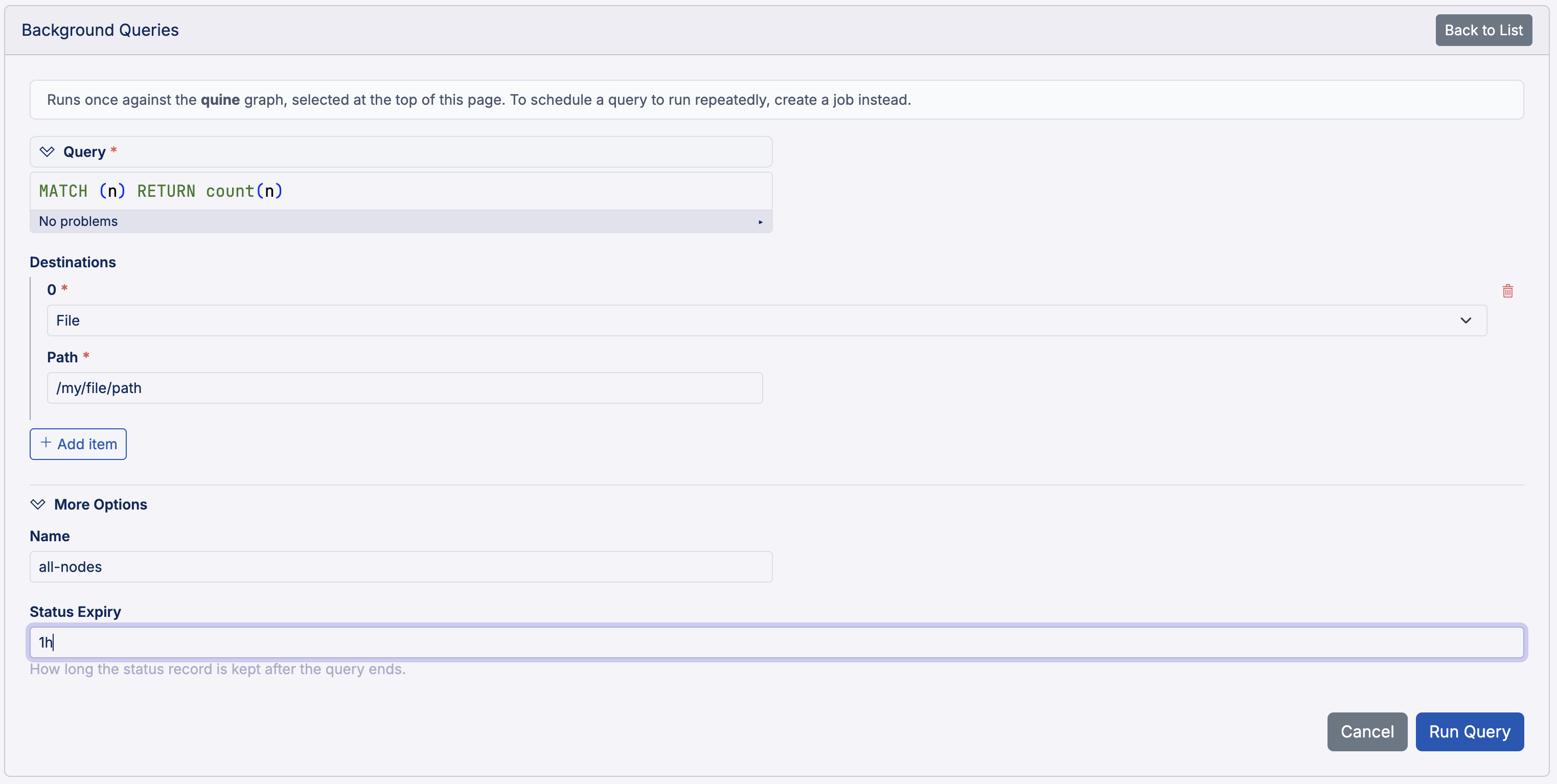
Click + New Background Query to open the creation form. The form is generated from the server's own API schema, so it offers the full set of destinations (Kafka, Kinesis, SNS, HTTP endpoints, files, Cypher queries, etc) with the same fields and validation as the standing query output forms.
Destinations default to Drop, which runs the query without writing its results anywhere. That is usually what you want when you intend to watch the results here rather than route them somewhere.
Inspecting Results
Expand a run to open an inspection: a live view of the rows the query is producing, in the same widget the Standing Queries panel uses for standing query inspection. Results stream in as they are produced and the view reports when the run terminates.
Starting an inspection is a read, so it needs no write permission unlike cancelling the run.
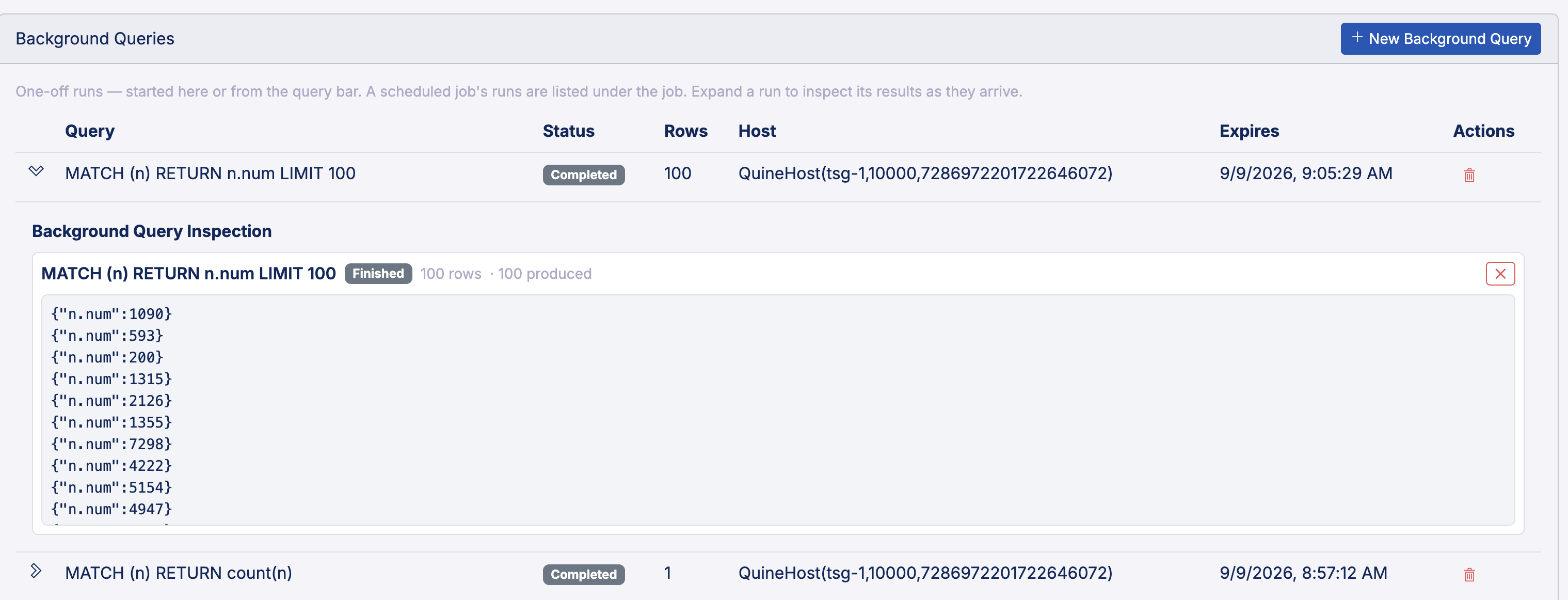
The same run can be inspected from more than one place at once (here and in the Exploration UI) without either view interrupting the other.
Results are best-effort
The live view is a diagnostic tool with no delivery guarantees: rows are dropped rather than buffered if the browser cannot keep up. The Rows column is the authoritative count.
Scheduled Jobs Panel
The Scheduled Jobs panel lists scheduled jobs which are named schedules that dispatch a background query each time they fire.
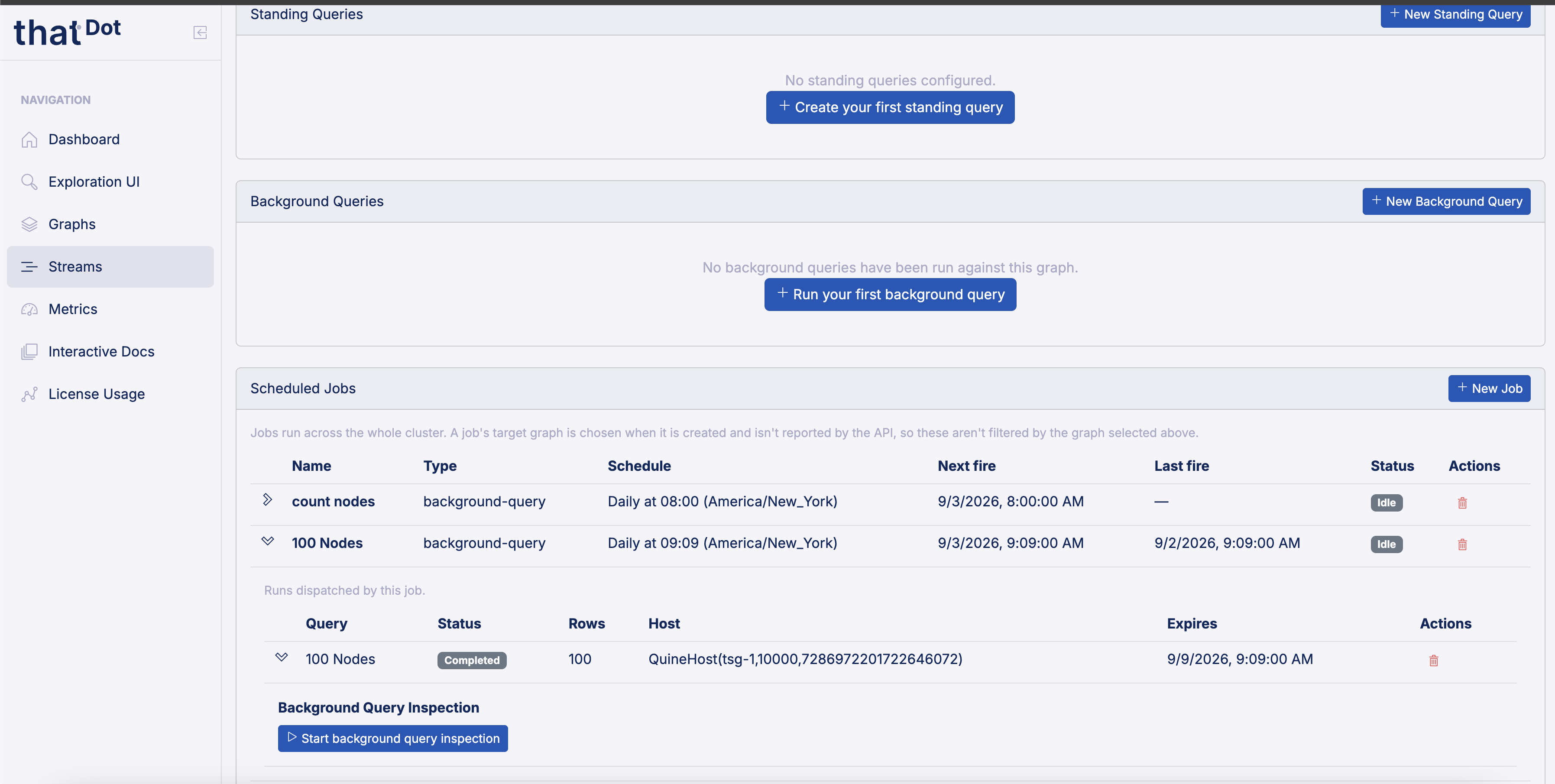
The table has the following columns:
| Column | Description |
|---|---|
| Name | The unique name identifying the job |
| Type | The kind of work the job dispatches |
| Schedule | The job's schedule, rendered from its definition |
| Next fire | When the job will next fire |
| Last fire | When the job most recently fired |
| Status | Running when a dispatched execution is currently in flight |
| Actions | Control to delete the job |
Expand a job to see the background-query executions it has dispatched against the selected graph. Each of those runs can be inspected, cancelled, and deleted exactly as in the Background Queries panel.
Creating a Job
Click + New Job to open the creation form, which collects:
- Name: A unique identifier for the job.
- Schedule:
Intervalfor a fixed cadence, orHourly/Daily/Weekly/Monthlyfor a wall-clock recurrence in a named timezone. - Action:
BackgroundQuery, with the target graph, the Cypher query, and its destinations.
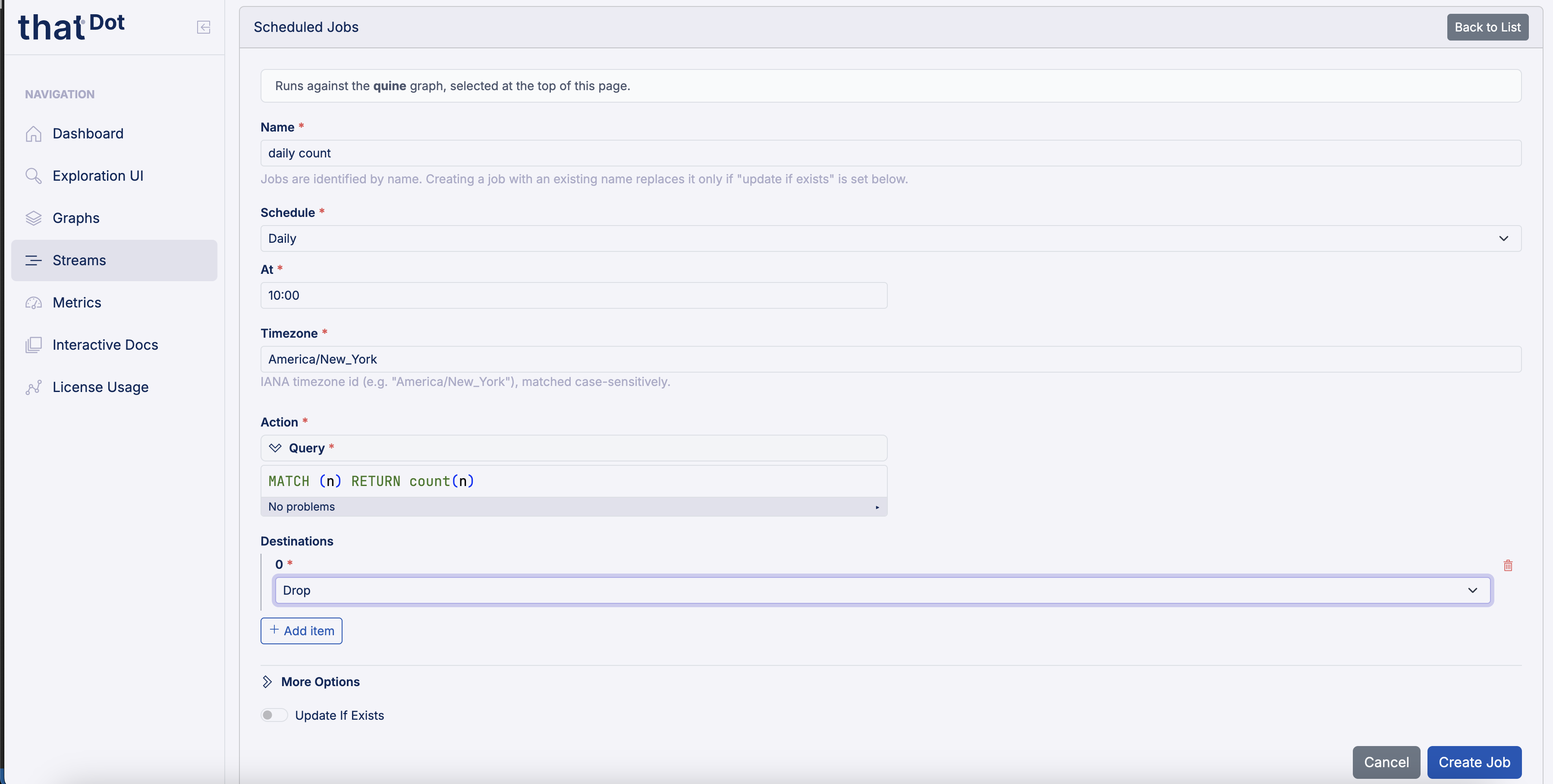
To edit a job one, delete it and create it again, or use updateIfExists on the create endpoint.
See Scheduled Jobs for schedule types, timezone and daylight saving behavior, and delivery guarantees.
Viewing Configuration
Click the chevron on any row in either panel to expand it and view the full JSON configuration for that resource.
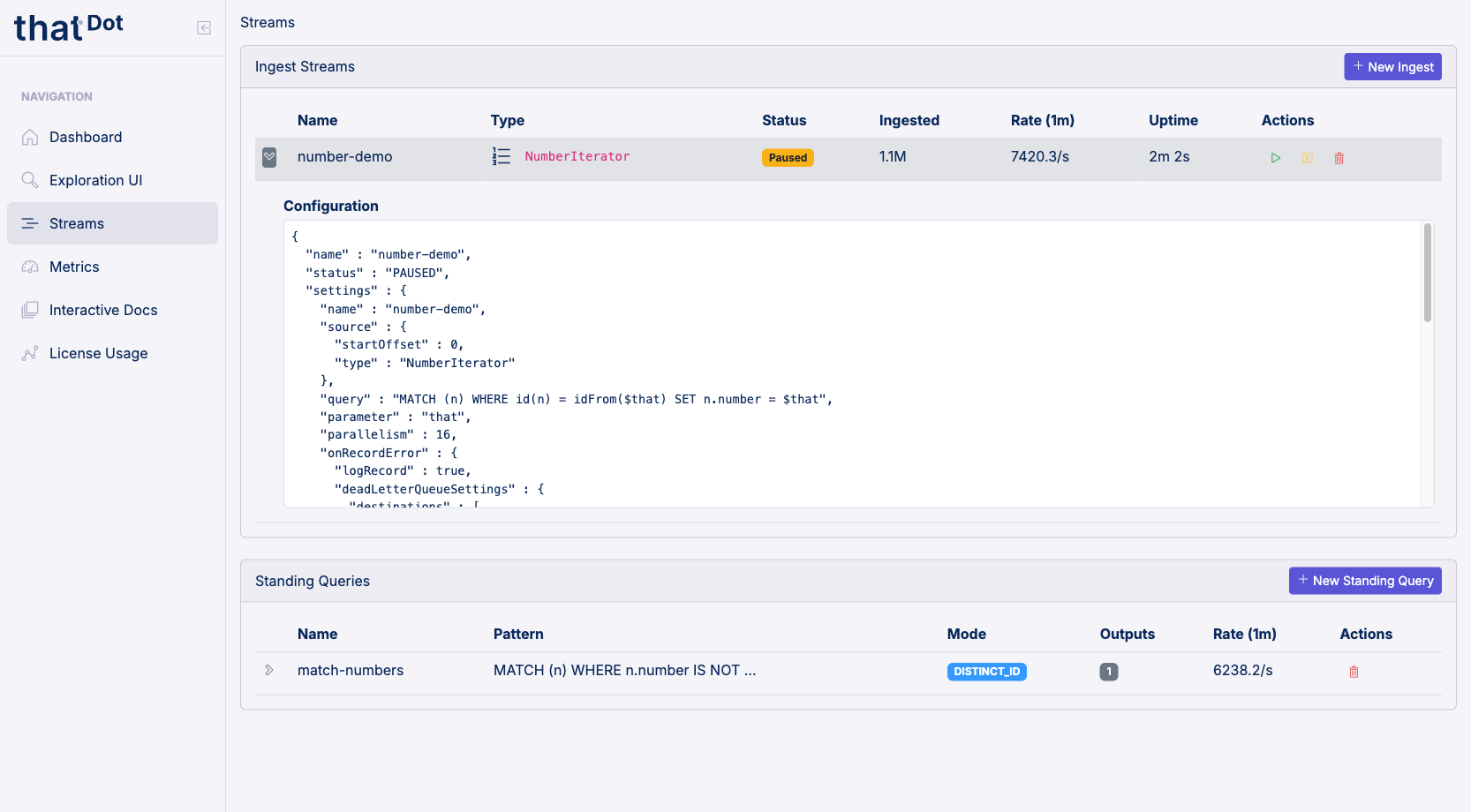
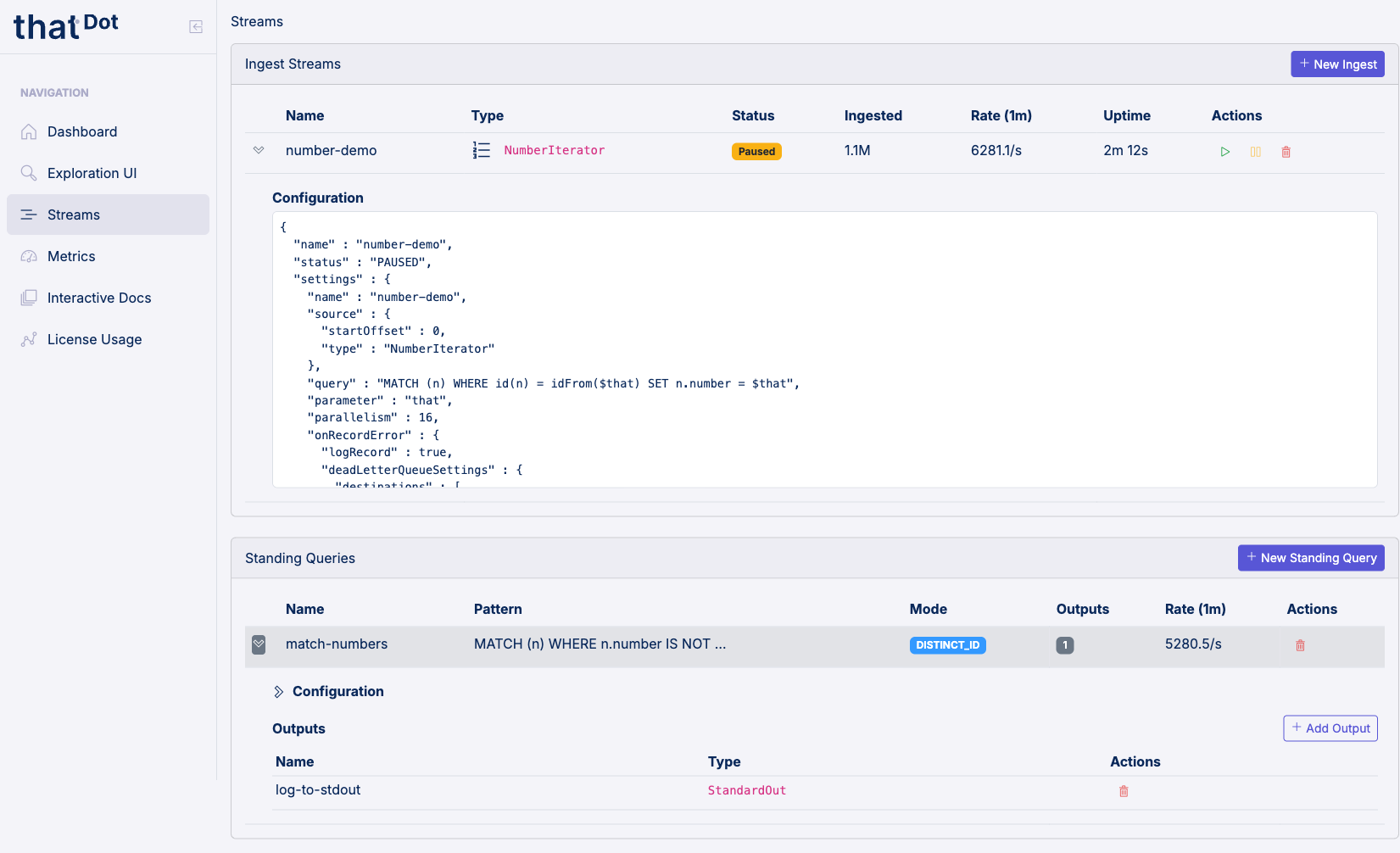
For standing queries, the expanded view also includes:
- Configuration: The full JSON configuration, nested under a collapsible header.
- Outputs: A sub-table listing each output destination by name and type. Each output can be individually removed.
Click + Add Output from the expanded view to add an output to an existing standing query.
Next Steps
- Ingest Streams: Detailed reference for all ingest source types, formats, error handling, and the API.
- Standing Queries: How standing queries work, pattern constraints, output destinations, and result enrichment.
- Background Queries: Running long Cypher queries out-of-band, streaming results, and watching them live.
- Scheduled Jobs: Schedule types, timezone behavior, and delivery guarantees.
- Exploration UI: Explore the streaming graph interactively with Cypher queries on an interactive canvas.